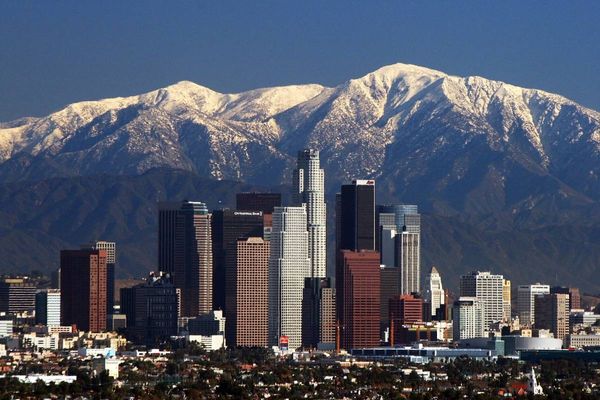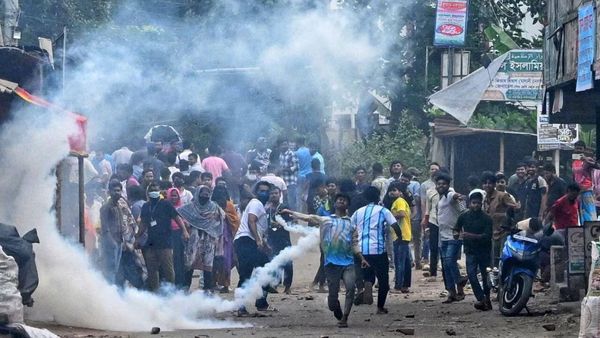
A photograph shows a narrow view of a crowded street. The article layout needs a wider image, so an editor extends the scene. The new space contains more sidewalk, another doorway, and fewer people. It fits the page, but the picture now shows a street the photographer did not record.
Cropping and extension have different roles in a news presentation. A crop selects from an existing view. Generated extension adds visual material beyond that view. Both can change a reader's impression, but only one creates new scene content. The distinction should guide whether the result is used as a photograph or as an illustration.
The Original Frame Defines What Was Recorded
Start with the source image and its original boundaries. Those boundaries show the photographer's field of view at one moment. They do not establish what stood outside the frame, even when the surrounding street seems easy to imagine.
For a hypothetical report about a queue, a narrow photograph might show several people near a doorway. Extending the left side with empty sidewalk could make the queue appear less dense. Adding more people could make it appear larger. Either change would introduce information the photograph does not supply.
An ordinary crop can also alter meaning. Removing people near an edge changes which part of the scene the reader sees. That deserves editorial review, yet the retained area still comes from the recorded frame. An extended doorway or stretch of sidewalk is a different kind of visual claim.
An AI Photo Editor can help prepare layouts, but the publication should decide which role the output is allowed to serve. A useful distinction is whether the image is meant to document the reported scene or provide a clearly separate illustrative treatment.
Keep the original source available during that decision. A wider-looking result can become familiar quickly, making the added area feel as though it had always been present. Comparing the boundaries prevents the team from relying on memory when discussing what was actually photographed.
Compare a Crop With a Generated Extension
Try fitting the original image into the page without adding scene content. A different crop, a smaller image, or a layout with surrounding space may solve the design problem. The page's preferred proportions are a design choice, not evidence that the photograph should contain more street.
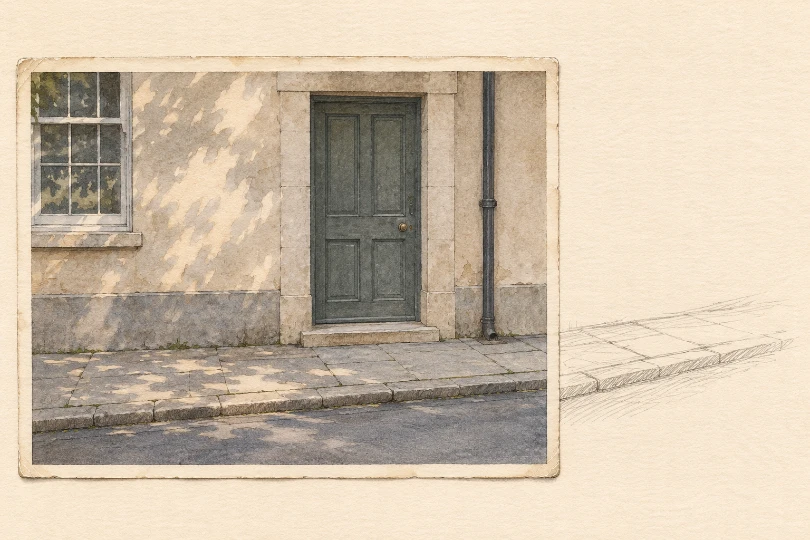
PicEditor AI's AI Image Extender adds new scenery around a photo so it fits a wider or taller frame. That can be useful for creative layouts, but the added region should not become new reporting evidence. The tool's ability to produce a plausible continuation does not establish what existed outside the camera's view.
An AI Photo Editor could provide an extended candidate for an illustrative design. Compare it with the original boundaries before deciding where it belongs. Check whether added buildings, people, road markings, or open space change the apparent circumstances of the story.
AI photo editing can make a narrow source easier to place in a decorative composition. For a news photograph, the same convenience creates a classification question. Is the result still being offered as a record, or has it become an interpretation built around a recorded center?
PicEditor AI's extended result should be evaluated according to that intended role. If the article needs documentary evidence of the queue, use the original view or another real photograph. A generated continuation cannot supply the missing wider shot simply because its lighting matches the source.
Prepare an Illustration Separately From the Documentary Image
If the publication needs an illustrative treatment, give it a presentation that makes the distinction understandable. Keep the straight photograph available where the reported event is discussed. The illustration can occupy a separate location with an appropriate description of its purpose.
Avoid blending an extended result into a gallery of ordinary reporting photographs without clear context. Readers may assume the images share the same evidentiary status. A visual treatment can be obvious to the production team and subtle to someone encountering the page for the first time.
When reviewing an AI photo editing result, identify the added region explicitly in the working copy. The point is to keep the team aware of where recorded material ends. That makes it easier to notice an invented feature that would affect the article's meaning.
PicEditor AI can provide a different illustrative candidate when the first adds too much specific scene content. A simpler surrounding treatment may serve the layout without inventing another recognizable doorway or a new group of people. The design can acknowledge its illustrative role instead of imitating a missing photograph.
Check the central recorded area as well. An extension operation may be intended to work around the source, but the final result still needs comparison. A changed face, sign, or object within the original boundary would create an additional problem beyond the new border.
Keep practical story information in ordinary text. The article should not depend on an added sign or architectural detail to explain where the event occurred. Those details need to come from reporting and source material the publication can verify.
Review the Caption and the Preview Together
Read the image description beside the actual layout. A caption that sounds like a straightforward account of a photographed scene can obscure an illustrative treatment. The wording and presentation should support the same understanding of the image.
Then inspect the social preview or other smaller version. The explanation attached to a full article may disappear when the image is reused. If the added region would look like recorded street information on its own, reconsider whether this is an appropriate preview asset.
Ask a colleague unfamiliar with the edit what they believe the photographer captured. Their answer can reveal whether the distinction is clear. If they include the invented doorway in their account, locate the visual or caption choice that led them there.
Consider the effect of a tighter crop on the extended image. A later designer might crop into the generated area without realizing it. Keep the original and illustrative versions clearly distinguished in the handoff so the added scene does not silently become the new source image. Include the untouched original alongside the layout candidate, and make the added boundary easy for the next editor to identify.
A different page layout is a valid outcome of this review. Blank space, a colored border, or a smaller documentary photograph may communicate more honestly than a seamless extension. The design should adapt to the available evidence when the scene itself is part of the story.
Keep the Wider Story in the Reporting
A news image should leave readers with a clear understanding of what was recorded and what was created for presentation. A generated border can be plausible without supplying a real wider view.
In practice, that means keeping two files. The recorded photograph runs with the report, and any extension made in PicEditor AI is labeled and kept for clearly illustrative uses. If the page only works with the extended version, change the page.